
Costs and rates
Cost per hour and hourly rates for consulting firms
Matrix works out what an hour really costs, from salary, billable hours and a share of the firm's expenses, and sets a rate on it. Old hours keep the cost they had.
Works on its own. Timesheet is free for everyone.
EUR 1 per employee, per month
A guide that sets everything up
When a workspace turns on Costs and rates, a guide goes through everything that changes and everything someone has to fill in.
A setup guide
The guide has two kinds of points. New things open by themselves and only need a look, such as new fields in HR, Finance in Settings, Scenarios and new columns on the projects. Tasks are things someone has to do: company expenses, salary, hours, utilisation, vacation and a start date for each employee, price groups on the projects, and a check of the fiscal year, the spread of company expenses and the work week. Optional points such as the margin target and turnover are marked and do not count.
An owner for each point
An admin goes through the points one by one and marks them as seen or gives them to one or more employees. By default the HR points go to those with the HR right and the company expenses to those with Settings > Finance. Project points can go to the project managers, so each one only gets their own projects. A point or an employee can be marked Not relevant with a note, and the note is logged.
A check that everything is set
Matrix checks that everything the cost price is worked out from is set: company expenses, salary or hourly rate, agreed hours, utilisation, vacation and start date. The numbers are shown per point, such as 6 of 24 employees have no salary, with a link to each employee. They update live, so the owners see when someone else has done something.
Calculate cost prices
When every point is set or marked not relevant, Matrix works out the cost price for all employees at once. Before anything is saved, you see before and after for each employee and can open the whole list, also as CSV. Who pressed it and when is logged. It is the last task in the guide, for admins only.
Time without a cost price
Time approved before the workspace had Costs and rates has no cost price. Matrix shows the list and asks whether the hours should get a cost price or stay as they are. Nothing changes in the background, and the choice is logged.
Salary, hourly rate and freelancers
What an employee costs before the firm's expenses are added. Salary and hourly rate are the base for the cost price.
Annual salary for each employee
Enter the employee's yearly gross salary. The cost price is the salary divided by the employee's billable hours, plus a share of the firm's expenses. For example 600,000 a year and 1,500 billable hours is 400 an hour before company expenses.
Hourly rate
For an employee paid by the hour you enter the hourly rate instead. The cost price is the hourly rate times the paid hours of the year, divided by the employee's billable hours, plus a share of the firm's expenses.
Freelancers with a fixed cost per hour
A freelancer invoices the firm by the hour. You enter their hourly price, and that is their cost price. A freelancer has no utilisation and no vacation and cannot be employees counted in operating expenses. A switch, Carries operating expenses, decides whether they also carry a share of the company expenses; if it is on, their agreed hours count in full in the spread. For example a freelance structural engineer at 750 an hour has 750 as the cost price on every hour when the switch is off.
Employees counted in operating expenses
Mark an employee as one who does not bill hours, such as administration or support. Their salary is added to the company expenses and spread over those who are billable. Their own cost price is the salary divided by the paid hours of the year.
Who may see salary, cost price and utilisation
The role decides who sees the cost price. The right Cost prices it sees has two levels: Own, only your own cost price, and All. Salary and utilisation follow HR's confidentiality levels. Fields the workspace has not bought are not sent to the browser at all, and cannot be read through the API either. Everyone who can open the same page sees the same numbers.
Salary history with a chart
Every change of salary is kept with amount, date, reason and note, as a table and as a step chart. A new amount applies from the date you choose, and earlier amounts are never overwritten. The reasons are your own list, starting with Yearly review, Promoted and Starting salary. Only those who may see the employee's salary see the history. With HR
A reminder before a salary review
Matrix reminds you in good time that a salary review is near. The next review is a number of months after the last change (12 to start with), the reminder comes a number of days before (30 to start with) and again 7 days after if nothing has changed. It goes only to users with a login who may see the employee's salary, never to the employee and never with an amount. With HR
Company expenses spread over the billable hours
The expenses that do not belong to one employee, and how they end up in each hour.
Company expenses as one yearly amount
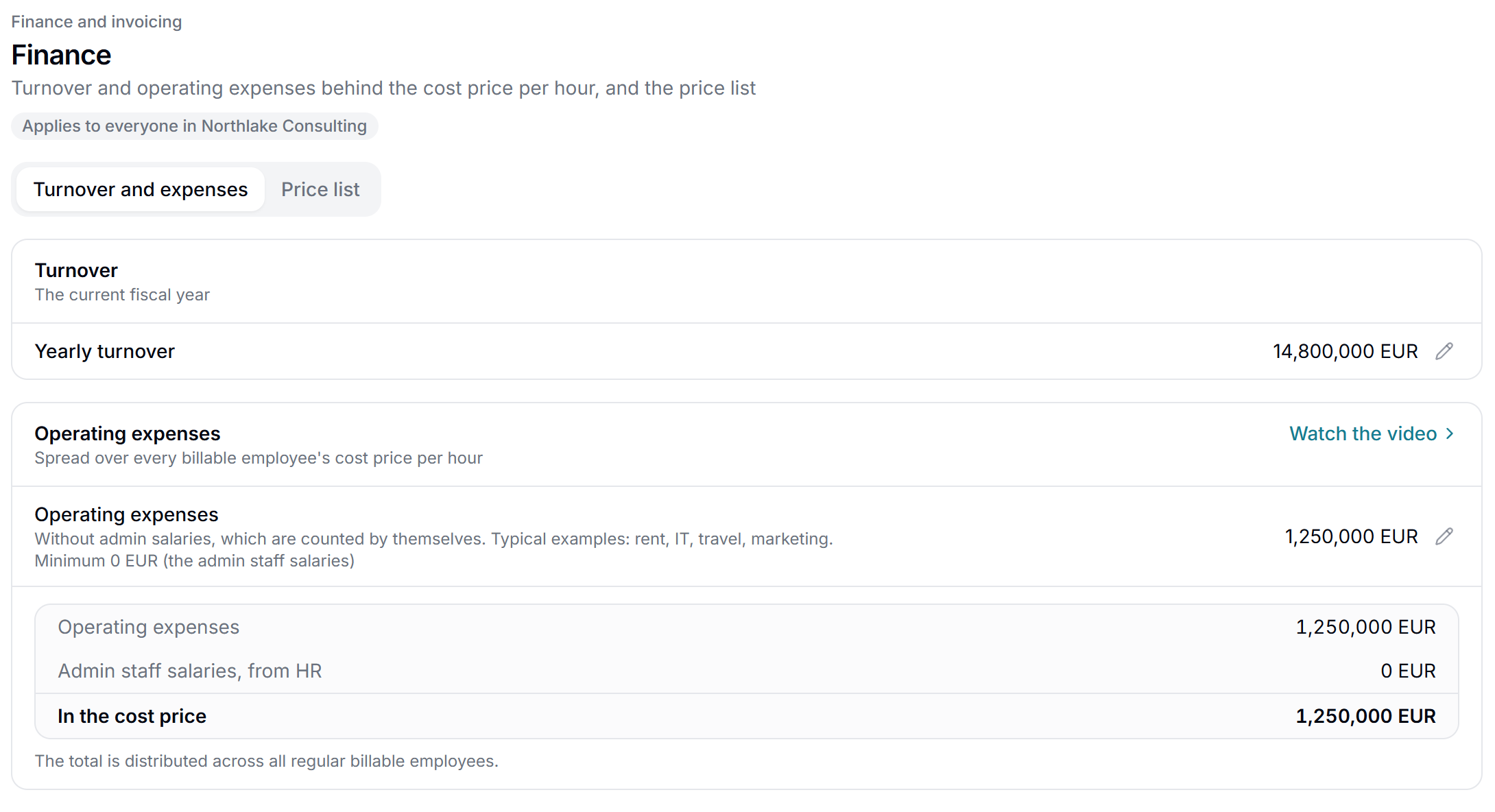
Enter the firm's expenses for the year, such as rent, IT, travel and marketing, as one amount with the date it applies from. It is added to the salaries of the employees counted in operating expenses and spread by the workspace's rule. Matrix shows the sum: your amount, the salaries of administration and what ends up in the cost price. Every change is in the change log with who, when, from and to. For example 300,000 in expenses and 20,000 billable hours adds 15 to each employee's cost price per hour.
Yearly turnover
A field for the workspace's turnover for the year. The cost price is worked out from the company expenses, not from the turnover.
How the expenses are spread
Spread them per billable hour, per paid hour, or equally per employee who carries a share. With an equal spread, everyone who carries a share gets the same amount, also those with 0 billable hours. Employees counted in operating expenses and freelancers without a share do not count. The choice has a date, and a date in the past asks Recalculate or Leave as is.
Only employees who have started
The company expenses are spread only over those who have started. An employee counts from their start date, and a new employee needs a start date.
Your own rules for cost and margin
The workspace's own rules on one card, with a pencil on each row and one common change log, also for the company expenses.
A margin target
A margin target in percent, off until you turn it on. A margin at or above the target is green, a yellow band lies a number of points under it (5 to start with), and below that is red. The target is used on the price group, in the price list, in Scenarios, on the project's realised margin and on lines in a quote from the price list's hourly rates. For example with a 25 % target and a cost price of 600, Matrix shows 800 as the lowest hourly rate that reaches the target.
Default utilisation for new employees
The workspace sets the utilisation new employees start with. It applies from today or a later date.
Fiscal year
The workspace picks the month the fiscal year starts in. The year change for cost prices follows it, the turnover card shows the current fiscal year, and Year in the custom report groups by the fiscal year, such as FY 2026/27. If a change hits approved hours, Matrix asks Recalculate or Leave as is.
Changes with a date
Salary, company expenses, utilisation and employment type get a date they apply from, and a change ahead takes effect on its own on the day. Salary and company expenses can be dated in the past. If it hits approved hours, Matrix asks Recalculate or Leave as is. Utilisation, employment type and the share of company expenses change only from today and on. If a later change exists, you choose whether the new one applies only to its own period or replaces the later ones. Everything is logged.
Utilisation you plan for, month by month
How large a share of an employee's paid time is expected to be billable. It decides how many hours the salary is divided over.
Planned utilisation for each employee and month
Set a percentage for each month and year, so seasons show in the cost price. The cost price uses the average of the months in the current year, otherwise the latest earlier year with figures, otherwise the employee's fixed target, and if nothing is set, 80 %. Months that have passed are locked. For example 90 % for six months and 70 % for six months averages 80 %.
Billable hours for each employee and in total
Matrix shows each employee's billable hours for the year: (paid hours minus vacation) times utilisation. The sum for the list is at the bottom. The paid hours come from the employee's weekly hours and the working days of the year, without the public holidays of the workspace's calendar.
A real cost per hour, worked out by Matrix
Matrix works out what an hour costs and keeps the figure on the employee and on the time.
Cost per hour is worked out for you
For permanent employees the cost price is the salary divided by billable hours plus a share of the company expenses. For hourly paid it is the hourly rate times the paid hours of the year, divided by billable hours, plus the same share. For employees counted in operating expenses it is the salary divided by the paid hours. The paid hours come from the days of the work week and the public holidays in the workspace's calendar. Everything is calculated in one place in the database.
The cost price explained
A question mark by the cost price shows the formula in words: salary, billable hours, share of company expenses, and that employees who have left do not count.
The cost price is saved on the time
A time entry gets the cost price of the working day when it is created, and again when it is approved. After that it stands fixed, so a later change does not rewrite the past unless you choose Recalculate. The project's finance reads the saved price. For example an hour from 30 June keeps the old cost price even if a raise from 1 July is entered later.
Updated by itself
When salary, hourly rate, employment type, employees counted in operating expenses, contracted hours, vacation hours, utilisation, company expenses, work week days, time zone, a public holiday or an end date changes, everyone's cost price is worked out again. It also happens at the year change, and the day after an employee's last working day. Only prices that actually change are written.
Vacation hours in the cost price
Vacation hours per year for each employee go into the cost price. When HR puts an employee on a vacation policy, the cost price uses the policy's hours instead. It also applies when a time off type's Counts as vacation changes, an activity is moved or a rule is edited, and HR sees the change before it is saved, with cost prices before and after. The method HR gives it has an optional field with expected hours for the cost price. Approved time keeps its saved cost price. With HR
Employees who have left do not count
From the day after the last working day, an employee who has left counts neither with their billable hours nor, if they were overhead, with their salary in the company expenses. The employee's own cost price stays as it was.
Cost price in the employee's settings
When you open a employee on a project, the employee's cost price per hour is shown next to the other details. It is shown to a role that may see the project's finances. With Project management
Hourly rates that cover your costs
What an hour is sold for, and how Matrix helps when the price is set.
Price groups with an hourly rate on the project
On a project you create price groups, each with a name and an hourly rate. The price groups are saved with the contract.
With Project management
A price group on every employee
Each employee on the team is put in a price group. On projects that invoice hours (Time, Time and materials, Recurring with hours, and fixed price plus time and materials), everyone on the team needs a price group, also the project manager. A project manager registers time on the project only when on the team, and a new project puts the manager on the team. The database checks the rule when the team is saved.
With Project management
A warning when a rate is under the cost price
If you choose a price group whose hourly rate is lower than the employee's cost price, a warning says it can give negative margins. With a margin target, a warning also shows when the rate is under the target, with the lowest rate that reaches it. It is shown to a role that may see the project's finances.
With Project management
Money columns in the project list
The project list can show columns for revenue, time budget, forecast total cost, result, costs of materials, external services and expenses, and progress against budget. With Project management
One shared price list
The workspace has one price list with standard hourly rates by role, materials and services. It is a guide: a price chosen from the list on a project or a proposal is copied and can be edited, and a change to the list never overwrites a project, a proposal or a quote. By each standard hourly rate you see the projects and employees who use the role and their average cost price with margin, for those who may see margin. The workspace decides whether those who create projects and proposals may see margin. Every change is logged.
From Costs and rates in the price list
A panel fetches the projects' hourly rates and can copy them into the price list. The price list then keeps its own prices. With Project management
Try changes before anything is saved
The cost price in your reports, and a place to try changes first.
Scenarios: try changes to the cost price
Combine raises, new hires, higher company expenses, other utilisation or employment type, and see the new cost price per employee and the margin on the active projects. It is calculated with exactly the same formula as the real cost prices, and nothing in your data changes. A scenario can be saved and shared, and everyone with the Scenarios right sees the same numbers. For example company expenses plus 100,000 shows at once how much each billable employee's cost price per hour goes up.
Cost price per hour in the custom report
The field Cost price per hour can be used in your own reports: the saved cost price of the hours, averaged over the hours. Everyone who may use the custom report sees the same numbers for all users, limited only by what the workspace has bought. Shared links never show prices.
Costs and rates on every project
With Project management, every part of Costs and rates is on the projects: contracts, price groups, margin and a forecast in money.
A new project with a contract
The form for a new project has a required line, Contract. Set up contract opens a panel with currency, contract type (Fixed price, Time and materials, Time or Recurring) and the price or hourly rates. No type is chosen in advance, not even from a won deal. If you pick Fixed price from a deal, the price starts with the deal's value. On projects that invoice hours, every row on the team gets a price group, also the manager's. The status Active needs a price. The database and MCP require a price too when a project is made Active.
With Project management
Change a contract to time
When Change contract turns a fixed price project into one that invoices hours, two more steps appear. Team and price groups shows the team in a compact table so everyone gets a price group. Hours from the fixed-price period always asks what happens to the hours from that period: Covered by the fixed price, Invoiced at the price groups, or Invoiced from and including a date. Each fixed-price period keeps its own choice, and hours from an earlier period on time can still be invoiced. Contract, price groups and the choice are saved together and shown in Budget changes. Finance, Cashflow and invoice drafts follow the same rule.
With Project management
The Finance tab on the project
Revenue, cost, forecast total cost (FAC), margin and forecast. The revenue on time projects is the hours times the employee's rate from the price group. Finance over time on the timeline uses the same numbers. Snapshots of the project finance also need Project management.
With Project management
Realised margin on earned revenue
The project's realised margin is worked out on what is earned to date: what is invoiced (approved and sent invoices minus credit notes, without VAT) plus what is done but not yet invoiced. That is hours at the price group's rate, started periods on Recurring, milestones reached on fixed price, and materials, services and expenses at sales price. The same rule applies to every contract type, and the figure is the same for everyone who may see the project's finances. Next to it is Billable spend to date, the billable spend at cost price with markup. For example 100 hours at 1,000, of which 60 are invoiced, and 5,000 credited, gives 95,000 earned. With Project management
Key figures on the project overview
Time budget used and Forecast profit, with spend, FAC, result and margin, coloured by the margin target when it is on. With Project management
Contract and budget in money
Contract type, price, currency, Budget in money and changes in money in the log. The time budget is open with Project management alone, and the contract type is shown there without prices, marked Costs and rates. With Project management
Customer and project manager on the project
Customer and project manager show in the project's header and can be set when it is created. The filters on customer and manager in the project list and the customer in the export come with it. With Project management
Plan: ahead or behind in money
The target for ahead and behind can be money, not only hours. The card in Settings > Projects follows. With Project management
Money figures in the list and the export
Total FAC and Forecast profit over the list, and the money figures in the CSV and Excel export. With Project management
Dashboard: the Projects section
The section with project figures on the dashboard, for roles with the right to projects. With Project management
Invoices and cashflow from hours
Hours become invoice lines at the price group's rate, and the forecast of coming invoices follows.
Hours on the invoice at the price group's rate
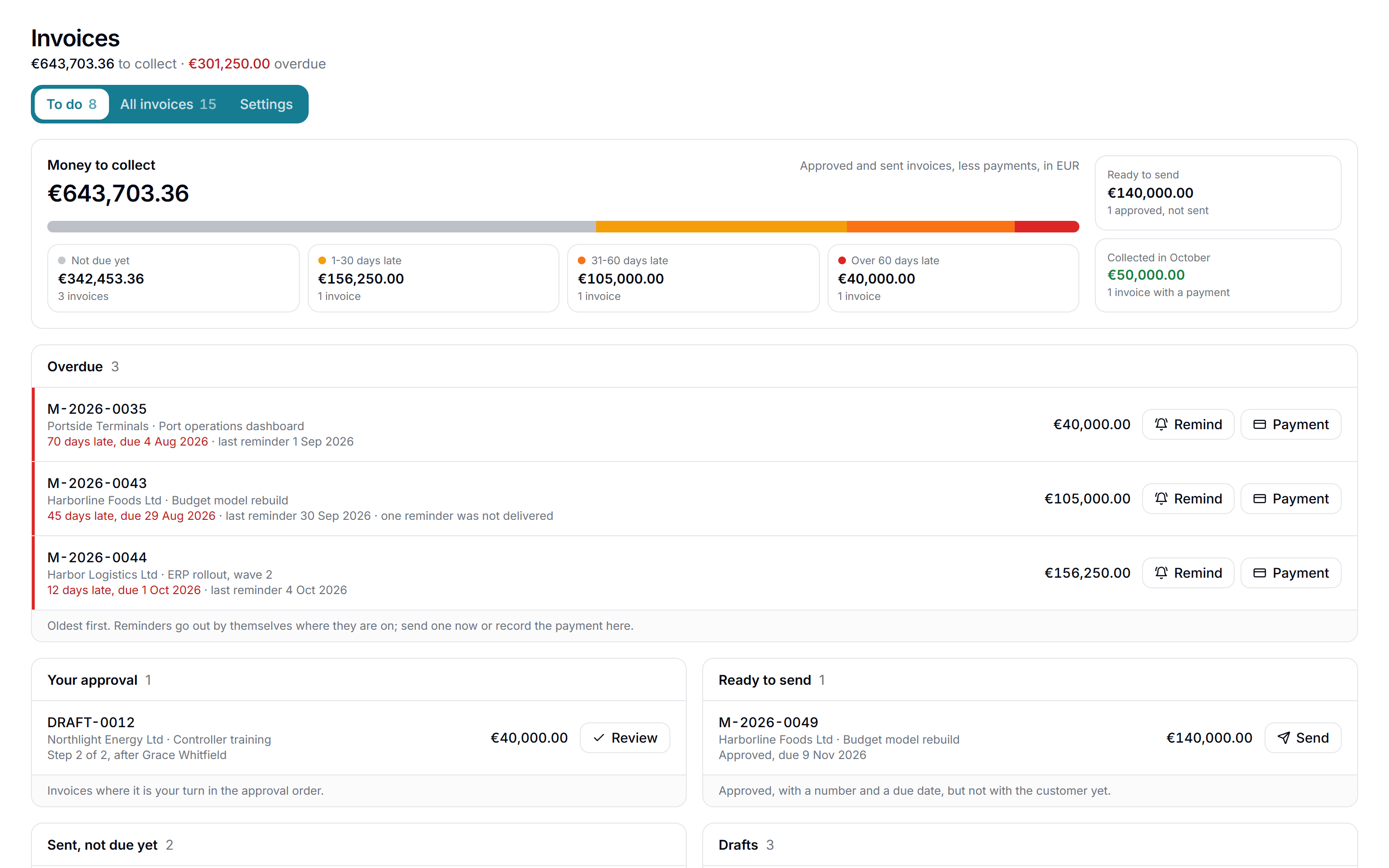
Invoicing by hours (On a schedule and Every N approved hours) makes one line per employee: approved hours times the rate from the price group. Hours without a price are included too and marked Price missing, so nothing is invoiced at 0. The invoice becomes a draft and can be approved or sent only when every line has a price. The database enforces the same on approval and sending.
With Project management
Invoicing at budget and progress
Every X % of Time budget on time projects, and When progress reaches X % (FAC time or FAC money) on fixed price, are measured in cost price and come with Costs and rates. Without it they are locked in the billing plan.
With Project management
Milestones as a percentage of the fixed price
With Costs and rates a new milestone starts as a percentage of the fixed price. Without it, it starts as a fixed amount and % of fixed price is locked. Milestones on a date, a repeating date or a task work with Project management alone.
With Project management
Recurring budget: hours beyond those included
Fixed period amounts are invoiced as always. Hours beyond those included go on the period's draft at the price group's rate. If they have no price, they are marked Price missing like other hours. With Project management
Cashflow from hours
The forecast of coming invoices on time projects is worked out as uninvoiced and planned hours times the hourly rate. Hours without a price show as a note by the amount. Hours covered by a fixed price are not included. With Project management
Cost in resource plans and quotes
Costs and rates connects to the other parts by itself when both are on. Nothing is bought separately for the connection.
Cost in the resource forecast and on placeholders
The resource forecast shows the cost, with tentative bookings on their own line. Placeholders can get cost fields.
With Allocation and Resources
Cost price and margin on quote lines
Quote lines with the price list's standard hourly rates show the role's average cost price and the margin, for those who may see margin. The quote's total margin is worked out after the discount on the whole quote, so it shows the real margin.
With CRM
From salary to margin in four steps
Follow the setup guide
Enter company expenses, salary, hours, utilisation and vacation, and give each point an owner.
Calculate the cost prices
Matrix works out the cost per hour for everyone, and you see before and after before anything is saved.
Set your hourly rates
Put price groups on the projects and get a warning when a rate is under the cost price.
Follow the margin
The saved cost price of each hour feeds the project's finance, the reports and Scenarios.
What cost per hour is for
The cost price per hour is what an hour of an employee really costs the firm: the salary divided by the hours the employee is expected to bill, plus a share of the company expenses.
It is saved on every time entry on the day it is registered, so a raise never rewrites the past. You choose whether approved hours are recalculated.
Use it on its own, or with the rest of Matrix
Costs and rates works without any other paid part. Combined with other parts it does more:
- Salary, cost price and utilisation on each employee, company expenses and rules in Settings, the price list and ScenariosWith Timesheet, free
- Price groups, project finance, contracts, invoicing by hours and cashflow from hoursWith Project management
- Salary history and a reminder before a salary reviewWith HR
- Cost in the resource forecastWith Allocation and Resources
- Cost price and margin on quote linesWith CRM
Pricing
EUR 1 per employee, per month, for the whole workspace. Try it free for 7 days.
See full pricingQuestions about costs and rates in Matrix
For permanent employees it is the salary divided by the employee's billable hours, plus a share of the company expenses. For hourly paid it is the hourly rate times the paid hours of the year, divided by billable hours, plus the same share. Matrix works it out and keeps it up to date.
No. A time entry gets the cost price of its working day and keeps it. You can choose Recalculate when a change hits approved hours, and every choice is logged.
Yes. Scenarios combines raises, new hires, higher company expenses, other utilisation or employment type and shows the new cost price per employee and the margin on the active projects. It uses the same formula as the real cost prices and changes nothing in your data.
A freelancer has a fixed cost price per hour, their own hourly price. They have no utilisation or vacation. A switch decides whether they also carry a share of the company expenses.
The role decides. The right Cost prices it sees has two levels, Own and All. Salary and utilisation follow HR's confidentiality levels, and fields a workspace has not bought are not sent to the browser at all.
No. Costs and rates works on its own, with cost prices, utilisation, company expenses, the price list and reports. Price groups, project finance and invoicing by hours come with Project management.
No. With Project management, hours without a price go on the draft marked Price missing, and the invoice can be sent only when every line has a price.
EUR 1 per employee, per month, for the whole workspace. You can try it free for 7 days.
Know what every hour costs
Start with the free Timesheet, then try Costs and rates for 7 days.
Free. No card needed.