
Standard hours
Standard hours and overtime tracking for consulting firms
Compare the time employees register with the time they are expected to work, day by day. Every difference over or under gets a tag with your own name, ready for payroll.
Works on its own. Timesheet is free for everyone.
EUR 1 per employee, per month
A work schedule for every employee
How many hours each employee is expected to work on each weekday. The schedule is the base for everything else in Standard hours.
A weekly schedule per employee
Give an employee their own schedule with hours for each weekday, from 0 to 24. It applies from the date you choose and never changes earlier weeks. The week's total shows while you edit. For example 8 hours Monday to Thursday and 5.5 hours on Friday, from 1 January.
Schedules that repeat over several weeks
Alternate between weeks or run a longer rotation of 2 to 8 weeks, with the hours for each week. The cycle counts from the Monday you set as week 1; calendar week numbers play no part. The next four weeks are shown, so you can check them.
Schedule overview and history
On the employee: this week's Standard hours, the next planned change and the contracted hours, then every schedule with its start date and status: in force, scheduled or earlier.
Remove a planned change
A schedule that starts on a future date can be removed after a confirmation, and the schedule before it applies. Schedules in force and earlier ones cannot be removed, so the history stays.
Without a schedule, the contracted hours are spread
An employee without their own schedule gets their weekly hours spread evenly over the firm's working days. For example 30 hours a week over five working days gives 6 hours a day. Without weekly hours on the employee, the firm's full week is used.
Who may change schedules
The users who may edit employees in HR can save and remove schedules, and the database checks the same. Everyone else sees the schedule without the buttons.
Every day measured against the schedule
For each employee and each day, Matrix finds the hours expected and compares them with the time registered.
Registered time and the difference
Registered time is every entry of the day except rejected ones, and time off such as vacation and sickness counts too. The difference is registered time minus Standard hours, in whole minutes. For example 9 hours against 7h 24min gives +1h 36min.
The week against the schedule
Above the week a line shows your time against your schedule up to today, for example 30h of 37h, and either the hours you are missing or On track.
Standard hours and Difference on the timesheet
The week grid gets a row for each day's Standard hours and one for its difference. Click a past difference to register it. On the day view and the phone, a Register button turns into Registered when the lines add up.
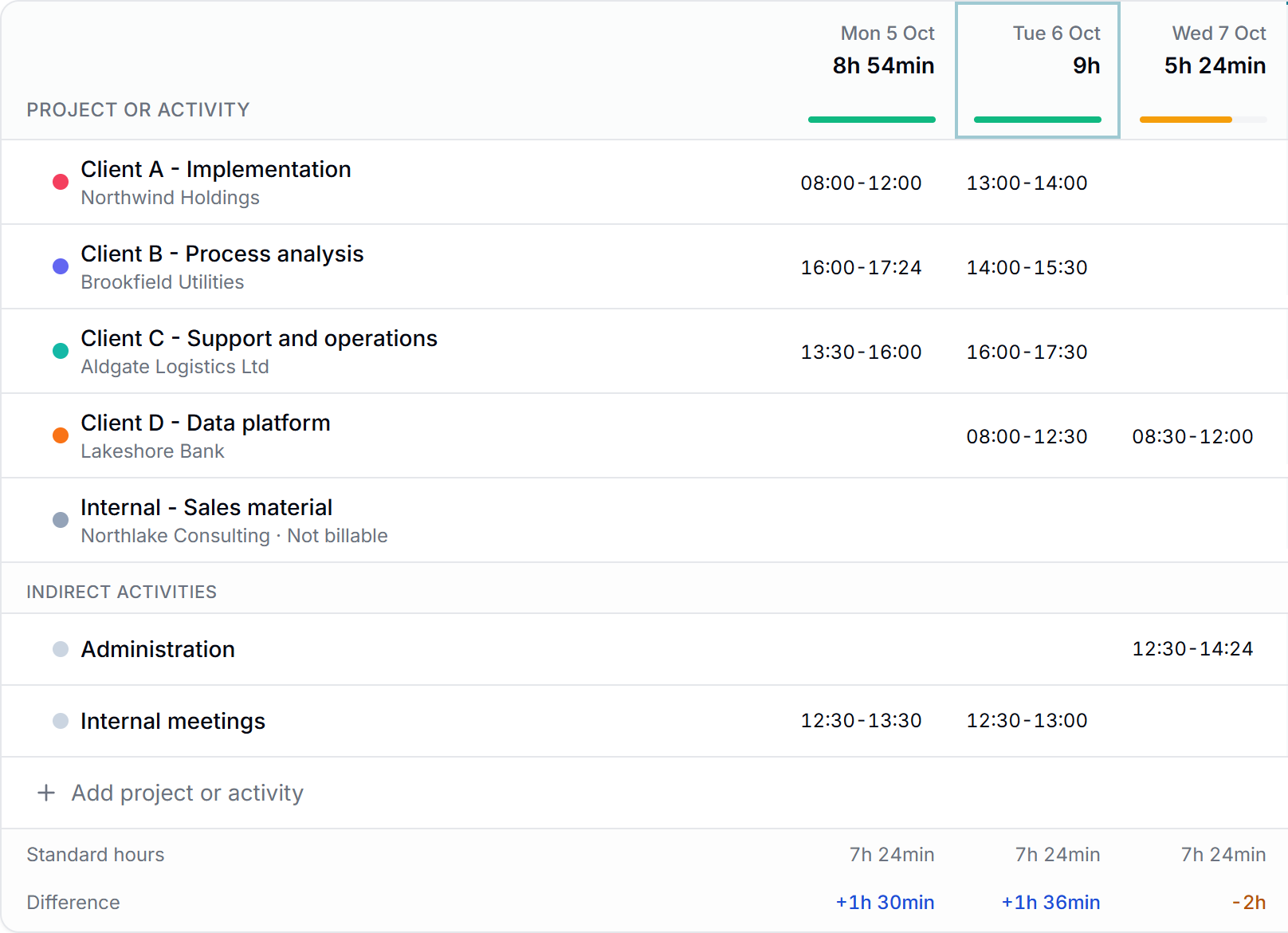
Standard hours for each day
Before the start date and on a public holiday the Standard hours are 0. Otherwise they come from the schedule that applies that day, in the right week of a rotation.
Public holidays
On a public holiday the Standard hours are 0, the holiday's name shows in the week grid, and time registered on it is a difference you can tag.
Only days that have happened
A day after today has no difference and is left out of the week's difference. Today's difference shows as in progress until the day is over.
The week check includes Standard hours
Before you submit lists the days up to today that are over or under without registered lines. A day with 0 hours in the employee's own schedule, such as a day off on part time, is not checked as a working day.
Submit week waits for the differences
When the setting is on, the week cannot be submitted until every day over or under has lines that add up, each with a tag. It applies to everyone, also through the API, because the database refuses it.
Explain the time over and under, line by line
A day over or under Standard hours is registered in lines, each with a tag, in one panel.
Lines that add up to the difference
A day over Standard hours is explained with lines, each with a project or internal activity you have time on that day, the time and a tag. A day under is explained with time and a tag. The day is registered when nothing is left. For example +1h 36min split into 1 hour on one project and 36 minutes on another.
A suggestion filled in for you
The panel starts with a suggestion from your rules, latest time first and never more than the difference. Nothing is saved until the employee saves it.
Save and next day
Save and next day saves and opens the earliest day still missing. When none is left, Matrix says the week can now be submitted, and it shows why Save is blocked, such as a line without a tag.
A panel for each day
The title gives the day and the difference, for example Tue 6 Oct, +1h 36min, with a pill for every day in the period to jump between them.
A timeline of the day
With manual timestamps, a day over Standard hours is one bar across 24 hours. Click a block of registered time to put it on a line or take it off again.
Times checked, lines split at rule limits
A line must lie inside the day's registered time, and lines must not overlap. A line that crosses the time where a rule starts or ends is split in two, each with its own tag. Without manual timestamps, a line has a number of hours instead.
Who may register a day
The employee, their manager and admins. After the week is sent, only the manager and admins can change it. In a payroll period sent to payroll, nobody can.
Your own tags, suggested by your own rules
Your own names for the differences, and the rules that suggest them.
Your own tags
An admin creates tags with your own names, up to 60 characters, like the codes in your payroll system. For example Overtime 50% and Time off in lieu. A tag can be turned off, and a tag that has been used can only be turned off, not deleted.
Rules that suggest a tag
A rule has days (chosen weekdays or public holidays), a time (any, after, before or between, also across midnight such as 22:00 to 06:00) and a direction (over, under or both). The first active rule that fits a line suggests its tag. A suggestion is never final.
A built-in Flextime tag
There is always a Flextime tag, which only employees on the Flextime employment type can choose. It can be renamed, not deleted or turned off.
Require the differences, or remind
The admin decides whether differences must be registered before the week is submitted. On, which is the default, Submit week waits. Off, the week check is only a reminder.
Rules in your order
Move rules up and down, switch a rule off or delete it. A small pill on the line shows which rule suggested the tag, and why.
Flextime balances and overviews for managers
The flex balance for flextime employees, and the differences for many employees at once.
Standard hours on the employee in HR
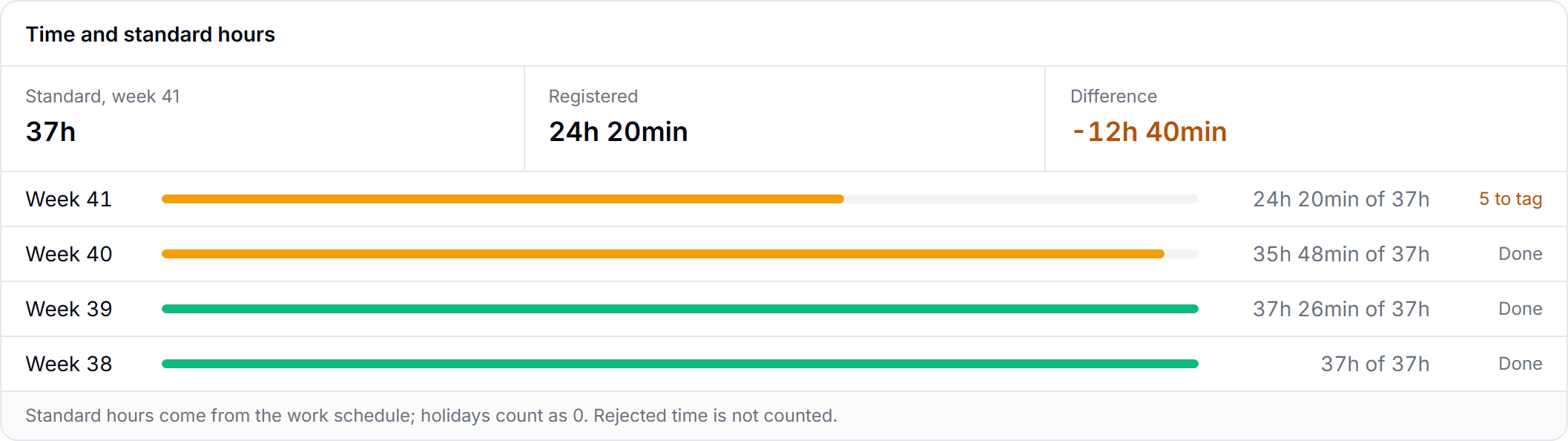
This week's Standard hours, the registered time and the difference, and the last four weeks with a bar and the days still to register, or Done.
Flex balance and breakdown
The employee's flex balance as extra hours earned or hours owed to the employer, with a breakdown of the opening balance, the flextime lines and manual adjustments. Adjust the balance with an optional reason, saved with your name.
Remarks at approval
A week gets a remark when the employee is more than an hour over or under their Standard hours. The working days come from the employee's own schedule and the public holidays.
Flex balance in the panel
For a flextime employee the panel shows the flex balance before the day, the flextime lines on the day and the balance after. Lines over add to the balance; lines under draw on it.
Columns in the employee report
Standard hours and vs Standard hours in the employee report, so you can sort by the difference.
The Missing time reminder
The day after a working day with less time than the schedule, Missing time can remind the employee, for example that 5h of 7h 24min is registered. Never for a public holiday or a day without Standard hours. On by default, and it can be turned off.
Differences ready for payroll
Matrix calculates nothing about compensation. The tag tells your payroll system what each difference is for.
Differences in the payroll file
Each registered line of a difference becomes its own line in a payroll period's payroll file, with signed hours such as +1.50 or -0.75, the tag, the times, the project or internal activity and who saved the day. Only lines from an approved week are included.
Zapier
Each tagged difference is sent once when the week is approved, or straight away when a line in an approved week is saved or changed. You can also search the tagged differences of a payroll period.
A Standard hours tab in Settings
Time outside Standard hours, tags and rules in one place in the timesheet settings. Only admins change them.
From schedule to payroll in four steps
Give each employee a schedule
Hours per weekday, or a rotation over several weeks, from the date you choose.
Register time as usual
The timesheet shows each day's Standard hours and the difference next to the time.
Register the difference
Explain the time over or under in lines. Your rules suggest the tags.
Approve and hand it to payroll
The tagged differences of approved weeks go into the payroll file and through Zapier.
What Standard hours are for
Standard hours are the hours each employee is expected to work on each day. Matrix compares them with the time employees register, so every day over or under is seen and explained.
Matrix calculates nothing about compensation. Each difference gets a tag with your own name, such as the code in your payroll system, and the payroll system does the rest.
Use it on its own, or with the rest of Matrix
Standard hours works without any other paid part. Combined with other parts it does more:
- Registered time and the difference on every dayWith Timesheet, free
- Wellbeing rules that look at overtime against each employee's own scheduleWith HR
- Capacity from each employee's own weekly scheduleWith Allocation and Resources
Pricing
EUR 1 per employee, per month, for the whole workspace. Try it free for 7 days.
See full pricingQuestions about Standard hours in Matrix
The hours each employee is expected to work on each day, from their own weekly schedule. Matrix compares them with the time registered and shows the difference over or under.
Yes. A schedule can repeat over 2 to 8 weeks with its own hours for each week, and a new schedule applies from the date you choose without changing earlier weeks.
No. Matrix calculates nothing about compensation. Each difference gets one of your own tags, and the tagged differences go to your payroll system in the payroll file or through Zapier.
Standard hours are 0 on a public holiday, and time registered on a holiday is a difference you can tag.
Yes. Time off such as vacation and sickness counts as registered time. Rejected entries are not counted.
Yes. For employees on the Flextime employment type, flextime lines over Standard hours add to the flex balance and lines under draw on it. HR sees the balance with a breakdown and can adjust it.
You decide. With the setting on, Submit week waits until every day over or under has lines with tags. With it off, the week check only reminds.
EUR 1 per employee, per month, for the whole workspace. You can try it free for 7 days.
Measure every week against the schedule
Start with the free Timesheet, then try Standard hours for 7 days.
Free. No card needed.